

DPO Pay plugin v1.2.0 for Gravity Forms v2.9.10
The DPO Pay Gravity Forms plugin allows you to accept secure online payments directly from Gravity Forms on your WordPress website.
Merchants can process credit and debit cards, digital wallets, and other payment methods supported by DPO Pay.
For any assistance, please contact the DPO Pay support team.
Download
You can download the plugin directly from GitHub:
Plugin repository:
https://github.com/DPO-Group/DPO_Gravity_Forms
Installation
Step 1 – Download the Plugin
-
Visit the GitHub releases page.
-
Download the latest release file:
gravity-forms-dpo-group-plugin.zip
Step 2 – Install the Plugin
-
Log in to your WordPress Admin Panel.
-
Navigate to:
flowchart LR
    Dashboard --> Plugins --> Add_New --> Upload_Plugin
-
Click Choose File and select the downloaded ZIP file.
-
Click Install Now.
-
Once installed, click Activate Plugin.
Configuration
Step 3 – Configure the DPO Pay Feed
-
In the WordPress Admin panel, click on Forms.
-
Select the Gravity Form you want to connect to DPO Pay.
-
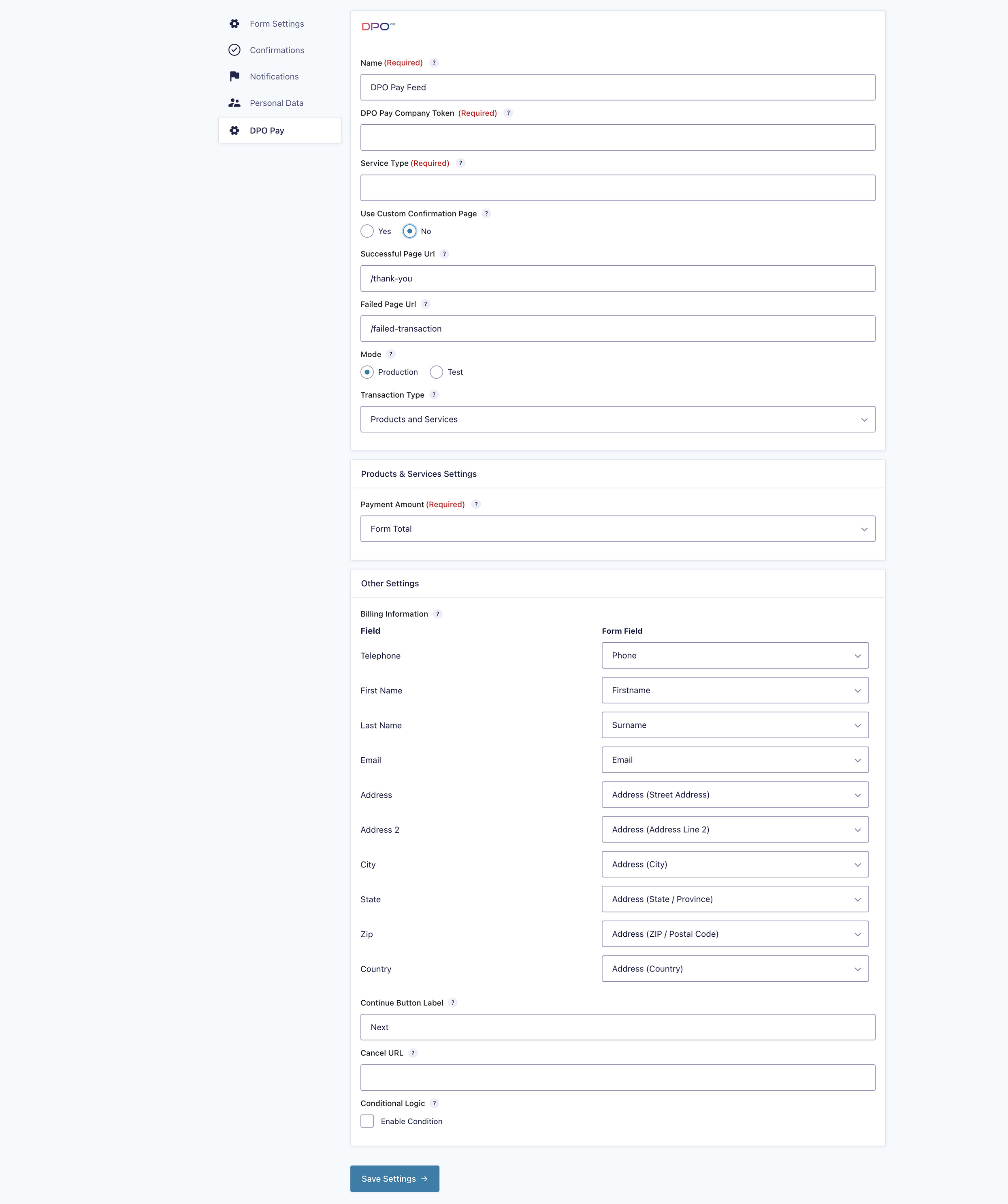
Open Form Settings and select DPO Pay from the menu.
-
Under the DPO Pay Feeds section, click Add New.
Configure Feed Settings
When creating the feed:
-
Select Transaction Type: Products and Services
-
Map your Gravity Form fields to the required DPO Pay fields:
-
Email
-
Country
-
Address (if applicable)
-
Pricing Fields
-
Important:
-
Ensure your form includes:
-
At least one Pricing Field
-
An Email Field
-
A Country Field
-
- Once completed, click Save Settings.
Step 4 – Configure Confirmation Messages
To properly handle transaction outcomes, configure the following confirmation messages in Gravity Forms:
-
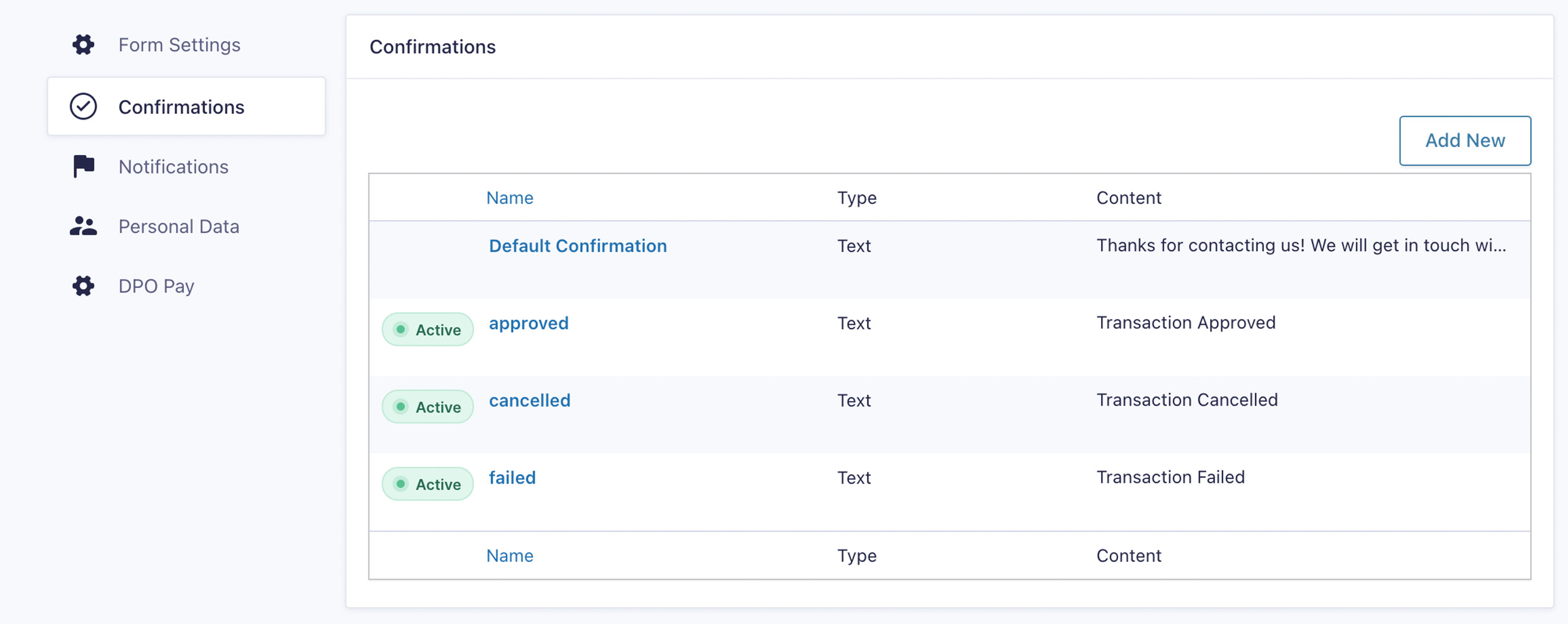
Go to Confirmations under Form Settings.
-
Create three new confirmations:
-
Confirmation Name: approved
- Message: Transaction Approved
-
Confirmation Name: cancelled
- Message: Transaction Cancelled
-
Confirmation Name: failed
- Message: Transaction Failed
These confirmations allow DPO Pay to redirect users based on the transaction result.
Testing Your Integration
Before going live:
-
Switch the plugin to Test Mode in the feed settings.
-
Perform a sample transaction.
-
Verify that:
-
Payments redirect correctly
-
Confirmation messages display as expected
-
Email notifications are triggered
-
Once testing is complete, change the mode to Production.
Support
If you require assistance with configuration or troubleshooting, please contact the DPO Pay Support Team:
Collaboration
Developers are welcome to contribute to the project.
Please submit pull requests for any enhancements or fixes via the GitHub repository.